# GamePad
The GamePad is a nodegraph feature that incorporates with the **`UserTrack`** node and it provides an interactive and user-controlled method for managing camera movement a three-dimensional space.
To activate the GamePad:
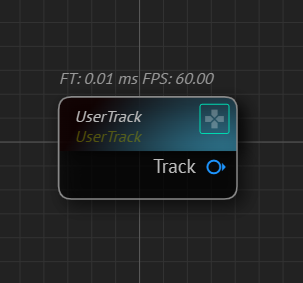
GamePad activation on UserTrack node
* Create a **`UserTrack`** node.
* Click on the GamePad Activation button on the **`UserTrack`** node, as illustrated above.
### GamePad Button in Nodegraph
GamePad Control on Nodegraph
Once activated on the **`UserTrack`** node, a GamePad Control button appears in the right-down corner of the Nodegraph, indicating that the GamePad controls are ready for use.
To utilize it, hover the mouse over the GamePad button to access the controls.
### GamePad Controls
#### Camera Movement
Use `W`, `A`, `S`, `D`, `E`, `Q` keys to control the translation movement of the camera (forward, left, backward, right, ascend, descend). While holding the right mouse button, press abovementioned keyboard keys to navigate the camera.
#### Camera Orientation
While holding the right mouse button, move the mouse to control the yaw, pitch, roll, and tilt of the camera.
**`UserTrack`** has the following properties:
* **Impulse**: Controls the initial force or impact applied to the camera movement.
* **Decay**: Governs the rate at which the camera movement slows down over time.
#### Example
Example Node Network for GamePad Feature
* Connect the Track output pin of the **`UserTrack`** node to the RealityCamera Track input pin of the UE5 processor.
* Create RealityCamera Scene Output Sink, as shown in the image above.
* Click on the GamePad icon on the **`UserTrack`** node.
* Hover over the Nodegrapgh GamePad button, right click and hold your mouse.
* Use `W`, `A`, `S`, `D`, `E`, `Q` keys to control the translation movement of the camera while moving the mouse to control the yaw, pitch, roll, and tilt.