# Animating Property

Reality Hub’s approach to animating is unique but easy to understand.&#x20;

This section will be animating **Reality Parent Transform Actor**'s <mark style="color:red;">**`Relative Rotation`**</mark> and <mark style="color:red;">**`Relative Location`**</mark> properties, located under <mark style="color:blue;">**`Transform`**</mark> property group.

* Add <mark style="color:yellow;">**`UserTrack`**</mark>, <mark style="color:yellow;">**`UE5`**</mark> nodes to the canvas.
* Connect the <mark style="color:green;">**`Track`**</mark> output pin of the <mark style="color:yellow;">**`UserTrack`**</mark> node into <mark style="color:green;">**`RealityCamera0.Track`**</mark> input pin of the <mark style="color:yellow;">**`UE5`**</mark> node.
* Create a <mark style="color:yellow;">**`Sink`**</mark> node on <mark style="color:green;">**`RealityCamera0.Track`**</mark> output pin of the <mark style="color:yellow;">**`UE5`**</mark> node. See [Sink Pin](https://zerodensitydocumentation.gitbook.io/docs/reality-5.4/reality-5.4/user-guide/nodegraph-actions/nodegraph/sink-pin).
* Activate the APM on <mark style="color:green;">**`RealityCamera0.Scene`**</mark>.

<div align="left"><figure><img src="https://content.gitbook.com/content/oKRkWKIoT5UAB0ERhlgD/blobs/YgsOlfJMdeODrTjJN42b/image.png" alt=""><figcaption><p>Example Node Network</p></figcaption></figure></div>

Your GRaph should look like the image above.

Now:

* Activate the Actions module; then click on the <img src="https://content.gitbook.com/content/oKRkWKIoT5UAB0ERhlgD/blobs/lagqwQfzGwM2gvekOLZh/image.png" alt="" data-size="original"> button.

<div align="left"><figure><img src="https://content.gitbook.com/content/oKRkWKIoT5UAB0ERhlgD/blobs/n8rUL1rO08Uc4uk4G71L/image.png" alt=""><figcaption><p><mark style="color:blue;"><strong><code>Transform</code></strong></mark> Property Group</p></figcaption></figure></div>

* Select the <mark style="color:yellow;">**`UE5`**</mark> Node, go to [Node Details Panel](https://zerodensitydocumentation.gitbook.io/docs/reality-5.4/reality-5.4/user-guide/nodegraph-actions/nodegraph/node-details-panel), expand the UE5, Reality Actor and Reality Parent Transform Actor folders, as illustrated above.&#x20;

<div align="left"><figure><img src="https://content.gitbook.com/content/oKRkWKIoT5UAB0ERhlgD/blobs/76jzyrX13k90QDftSSn1/image.png" alt=""><figcaption><p>Adding Various Properties to Action Timeline</p></figcaption></figure></div>

* Go to <mark style="color:red;">**`Relative Location`**</mark> property, click on the Add Timeline button (![](https://content.gitbook.com/content/oKRkWKIoT5UAB0ERhlgD/blobs/2wPxCkoYEQsH8mFj0Vrx/image.png)) in the [Node Property Toolset](https://zerodensitydocumentation.gitbook.io/docs/reality-5.4/reality-5.4/user-guide/nodegraph-actions/nodegraph/node-details-panel/node-property-toolset).
* Do the same for <mark style="color:red;">**`Relative Rotation`**</mark> property.

As the above image illustrates that <mark style="color:red;">**`Relative Location`**</mark> and <mark style="color:red;">**`Relative Rotation`**</mark> properties are now subject to the Actions module and are ready to be animated.

Now:&#x20;

<div align="left"><figure><img src="https://content.gitbook.com/content/oKRkWKIoT5UAB0ERhlgD/blobs/xEXj4tLJCurV5AMYxeJ6/image.png" alt=""><figcaption><p>Property Animation Circle</p></figcaption></figure></div>

When you hover your mouse over Relative Location, the **Node Property Menu Circle** turns white; this indicates that the property/function can be triggered/animated.

* Right click on the **Node Property Menu Circle** of <mark style="color:red;">**`Relative Location`**</mark> and select the **Add Keyframe**, as shown in the image above.
* Repeat the same process for the <mark style="color:red;">**`Relative Rotation`**</mark>.

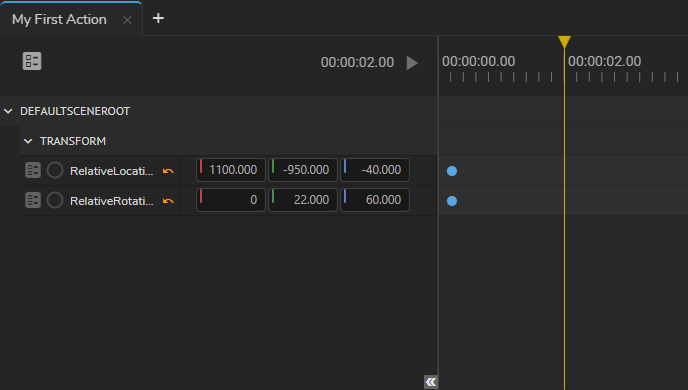
<div align="left"><figure><img src="https://content.gitbook.com/content/oKRkWKIoT5UAB0ERhlgD/blobs/7ZjD0q7TFPrQv9eqKTjG/image.png" alt=""><figcaption><p>Time Ruler</p></figcaption></figure></div>

* Scrub the Playhead to the second 2.
* Change the <mark style="color:red;">**`Relative Location`**</mark> and <mark style="color:red;">**`Relative Rotation`**</mark> property values similar to the one illustrated above. &#x20;
* Right click on the <mark style="color:red;">**`Relative Location`**</mark> and add the second keyframe. Repeat the process for the <mark style="color:red;">**`Relative Rotation`**</mark> property.&#x20;

{% hint style="info" %}
Make sure that you deselect the keyframe before adding another one to a different property.
{% endhint %}

<div align="left"><figure><img src="https://content.gitbook.com/content/oKRkWKIoT5UAB0ERhlgD/blobs/8o0vneBjUSuDaMQjm3ru/image.png" alt=""><figcaption><p>Changin Interpolation</p></figcaption></figure></div>

* Select the second keyframe of <mark style="color:red;">**`Relative Location`**</mark>, change its interpolation type from **Jump** to **EaseOut**. Repeat the same process for the <mark style="color:red;">**`Relative Rotation`**</mark> property.

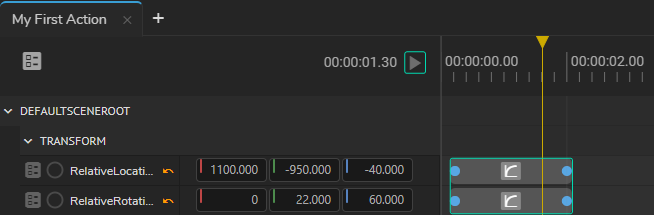
<div align="left"><figure><img src="https://content.gitbook.com/content/oKRkWKIoT5UAB0ERhlgD/blobs/O60IaCVaG364PxQAZmva/image.png" alt=""><figcaption><p>Finalizing Action Animation</p></figcaption></figure></div>

As the above image shows now our animations are completed.&#x20;

* Click on the **Action Play** button.